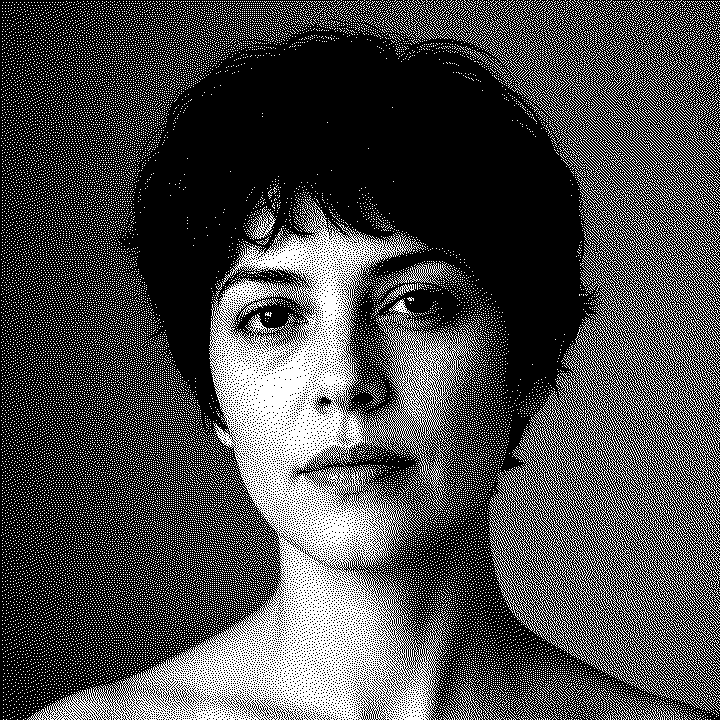
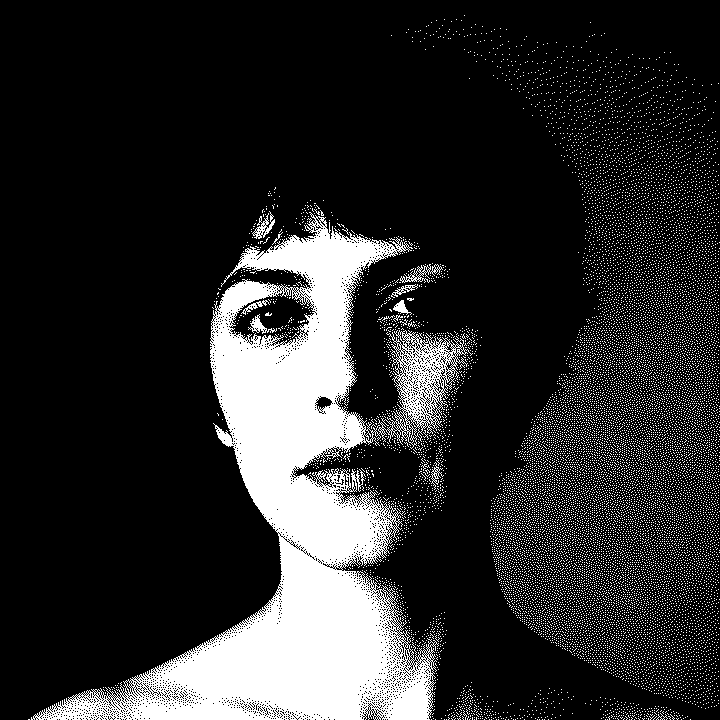
More control
Easy
Start from a material, then move brightness, contrast, sharpness, and the dither while the dots update.
- Live before and after
- Every material profile
- Dither you can change
- Fine tune before download

Laser image preparation
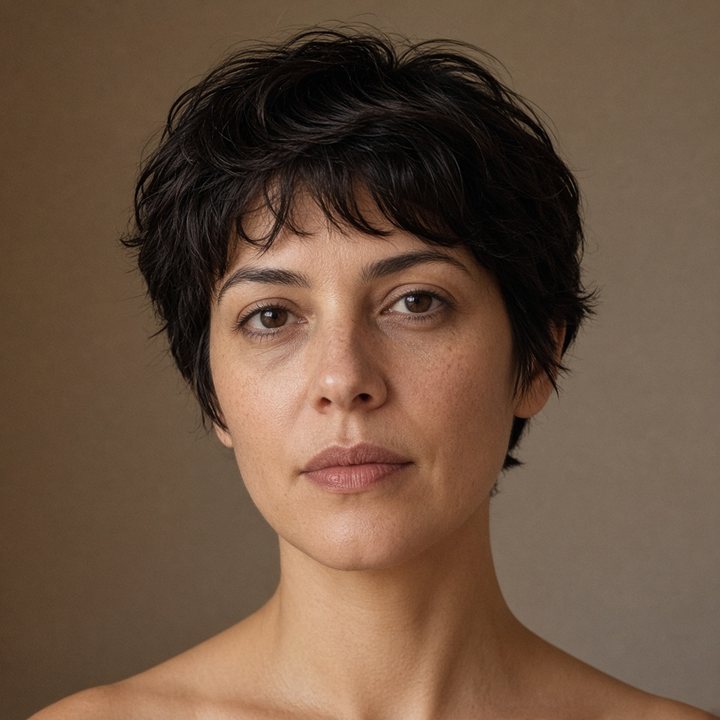
image-r turns a photo into a laser-ready PNG in the browser. Contrast, sharpness, and dithering follow the material. Guests can preview. A subscription downloads the file.
No install. The photo never leaves this computer.

10
Material profiles
6
Dither modes
On device
Photos stay here
Preview
Before you subscribe
Choose a pace
From a material preset to the full dither controls. The preview is the file you download.
More control
Start from a material, then move brightness, contrast, sharpness, and the dither while the dots update.
Fastest path
Upload a photo, pick the material, and the profile sets contrast, gamma, and dither for you.
Full control
Rotate, resize, invert, set the split point, and choose the dither pattern the burn needs.
People, pets, and memorials where the midtones have to survive the burn.
Lettering and logos that need a hard edge on wood, acrylic, or slate.
Boards, leather, and small goods that get the same profile every time.
Coasters, ornaments, and panels where the dither is part of the look.
Wood
Birch plywood
Balanced dots for a clean burn on light plywood.
Wood
Walnut
Deeper contrast so faces still read on dark hardwood.
Wood
MDF
Softer diffusion so the face does not scorch.
Stone
Black slate
Inverted so the laser lifts the light parts of the photo.
Stone
Ceramic tile
High contrast for coated white tile.
Plastic
Black acrylic
Crisp dots for dark cast acrylic.
Organic
Leather
Gentler contrast so skin tones stay open.
Metal
Anodized aluminum
Ordered dots that read like a printed halftone.
Glass
Glass
Strong separation for surface engraving on glass.
Organic
Cork
A light touch so the natural grain stays visible.
Pricing
Guests can preview every tool. Downloads start at $5 a month. Studio, Workshop, and Shop remove the daily cap.
The $5 entry plan. Ten downloads a day, with the full toolset.
$5
per month
10 images per day
A month of unlimited downloads for a maker who engraves most weeks.
$19
per month
Unlimited images
Six months of unlimited downloads for a shop with a steady order book.
$99
every 6 months
$16.50 / month equivalent
Unlimited images
A year of unlimited downloads. The lowest cost per month.
$159
per year
$13.25 / month equivalent
Unlimited images
FAQ
image-r turns a photo into a laser-ready PNG. You pick a material, and the studio sets contrast, gamma, sharpness, and a dither pattern that a diode, CO2, or fiber laser can engrave.
PNG, JPG, WEBP, BMP, and GIF. Very large photos are scaled so the long edge stays within the size you choose, which keeps the preview responsive.
Yes. Download a PNG and import it into LightBurn, LaserGRBL, xTool Creative Space, Glowforge, or any program that engraves images. image-r prepares the picture. Your machine settings — speed, power, and DPI — still belong to the laser.
A laser mostly burns or does not burn. Dithering turns gray shades into a pattern of black and white dots so the photo still looks continuous. Floyd–Steinberg, Atkinson, and Jarvis scatter error into neighboring pixels. Bayer uses a fixed dot screen, which suits anodized metal.
On black slate, black acrylic, and some coated tile, the laser removes a dark surface and reveals a lighter mark. Those profiles invert the photo so the bright parts of the picture are the parts that get engraved.
Three optional tools do. Background removal uses MODNet, 2× upscaling uses Swin2SR, and material suggestions use CLIP. All three are Apache-2.0 models and run in the browser through Transformers.js. The first use of each tool downloads that model, then the browser keeps it. Contrast, gamma, and dithering stay ordinary image math. Photos are not sent to an AI service.